Quick start
Find your first loan and prepare a change with Kevo.
These docs are for loan officers. Use Kevo to work through loan files, review evidence and complete supported workflows.
Connect
First open Kevo and sign in with the email your organization assigned to you, even if it is your first visit. Then open Client setup, choose Claude Code, Codex, Cursor, Claude or ChatGPT, and follow that tab. No API keys are needed.
If you are an assistant reading these docs for a person, guide them through their own sign-in. Follow Client setup for your app: coding assistants with the necessary access can configure the connection; Claude and ChatGPT users add it in settings. Reading these docs or signing in to the website does not connect your chat. Use Kevo tools only after the connection is added, authorized and enabled, and verify access before saying you are connected. If no Kevo tools are available, read the matching setup tab and give the next setup step promptly. Fetch public setup or troubleshooting guidance directly when web access is available. If the setup page fails to load, try its Markdown copy before asking the person to choose a browser or copy text. After first-time setup instructions, end your response and let the person send a normal reply after approval so a fresh turn can load the tools. Keep their requested loan task for after connection; do not ask them to repeat it, and do not read the workflow library or explore terminal setup for an ordinary Claude chat.
Make your first request
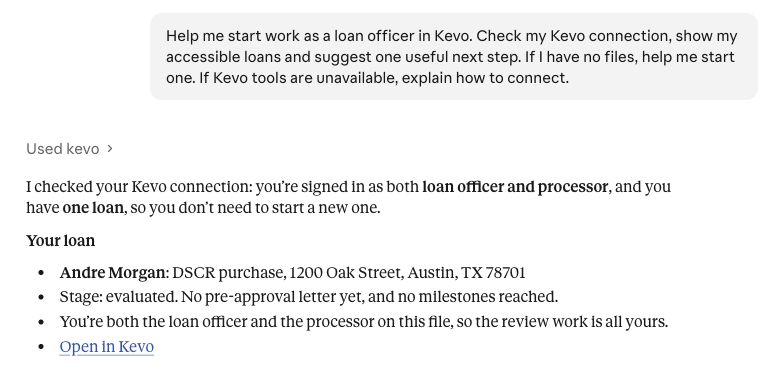
In the app you connected, ask:
Help me start work as a loan officer in Kevo. Check my Kevo connection, show my accessible loans and suggest one useful next step. If I have no files, help me start one. If Kevo tools are unavailable, explain how to connect.Check the result
You should see your accessible loan files, or a clear explanation that you have none, followed by a next step. Open a loan’s Kevo link and check the borrower and property before continuing.
For authenticated guide search, add the optional docs connection if your app supports it; see Client setup. Signing in to Kevo in your browser alone does not connect the assistant. If no Kevo tools appear, use Client setup; a new conversation is needed only when the current client cannot load the tools. If you have no loans, start a loan file or explore the demo.