Review documents
Review each document a borrower uploads, accept it or request a specific correction.
This guide is for loan officers and processors. Review each document the borrower uploads, then accept it or ask for a specific correction.
An upload means Kevo received a file. Check the proposed document type, source values and any differences against the original before you verify it.
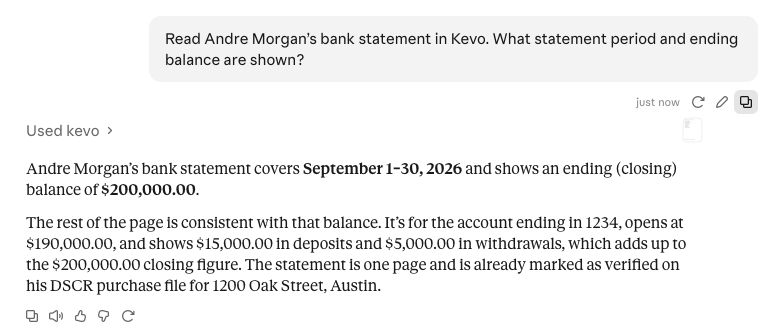
Your connected app can answer questions about a document page. Check the original when reviewing the reported values.
Review a document
- On the loan, open Open documents and choose the document. Open Preview version to inspect its pages, then open Review version.
- In Document text review, check the suggested type, source quotations, completeness findings and differences against the original. Select values you want to bring into the review, enter Measured at and Valid until, and choose Use selected values in review.
- Check or adjust the values under Facts supported by this version, complete Confirm your review, and choose Verify this version. To ask for a corrected file, choose Request a replacement and fill in What needs correcting?.
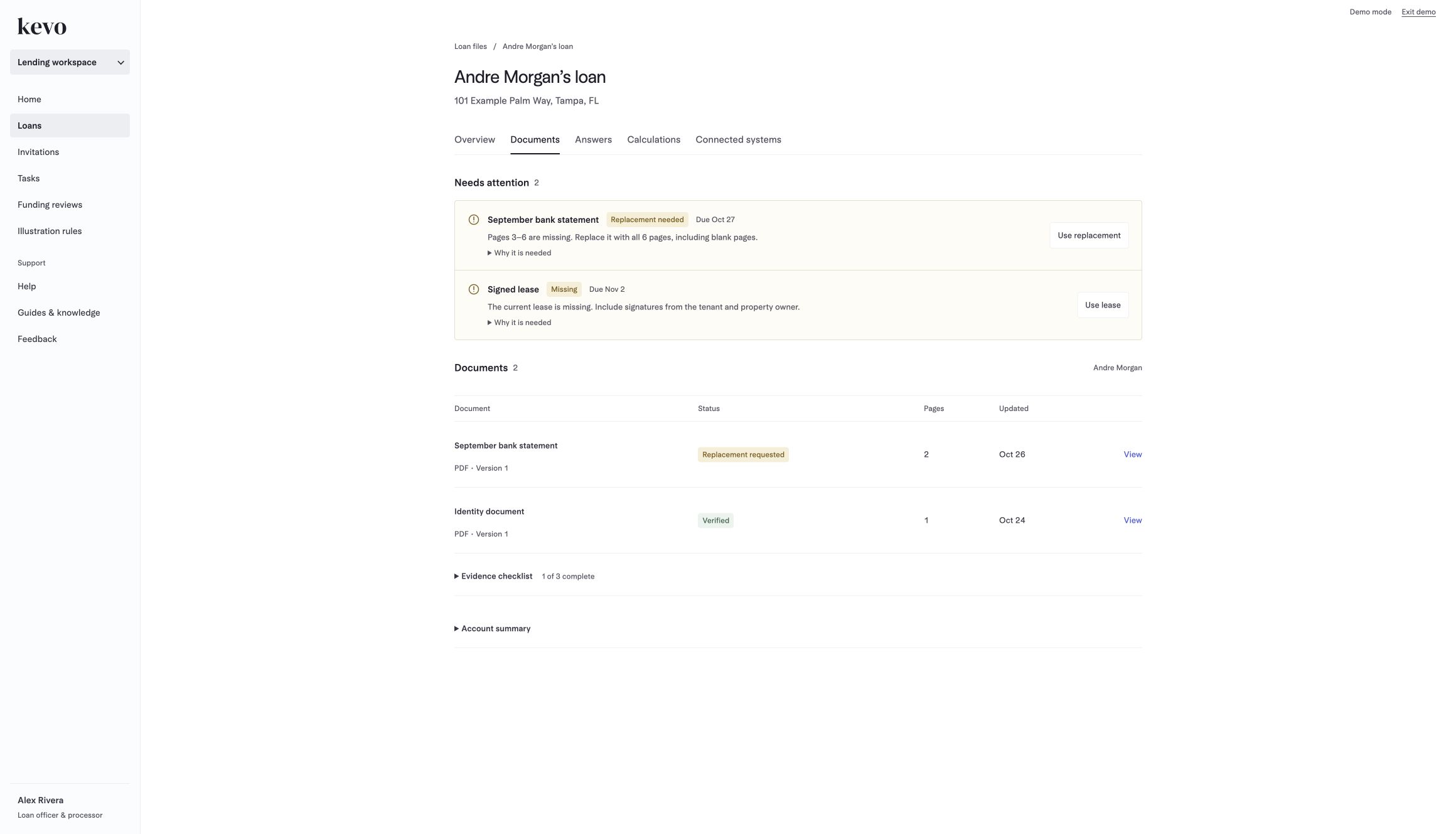
The demo document list shows a replacement request alongside the current document status.
For a document over 20 pages, use Pages to review to inspect each page range. The progress line shows how many pages and ranges are prepared and how many ranges include AI interpretation. If the daily preparation limit is reached, the remaining pages are scheduled after it resets; you can still inspect the original.
Name the problem and the fix in one request, for example “Upload all six pages of the September statement, including blank pages.” A browser-created request can queue an email to the named person’s verified sign-in address with a link to the exact request; a prototype automation request does not send a borrower follow-up. The instructions and due date appear after they sign in. Check the request’s email status before assuming it arrived.
Unanswered requests receive up to three reminders, 48 hours apart. Pause reminders stops follow-ups for that request. Reminders stop when an upload is awaiting review, the request is fulfilled or cancelled, the person is removed or the loan is withdrawn.
Review a replacement
A replacement belongs to the original request. Kevo keeps the earlier version and puts the new one back into review, so repeat the checks before you accept it.
If the document supports a released letter, the letter may need a review too. See Handle a change after release.
With MCP
Your connected app can record supported source-bound reviews and correction requests directly. An AI review stays attributed to that app and the exact document version; it is not recorded as your personal review. A replacement must pass its own checks.
An example request:
Which documents on Andre Coleman's loan are waiting for my review, and what does each one show?The tools this guide uses:
| Tool | What it does |
|---|---|
documents_list |
Lists a loan’s documents and their review status |
documents_inspect_page |
Inspects one current scanned page image and untrusted text with its source hash |
documents_prepare_review |
Prepares a review for personal confirmation |
documents_propose_correction |
Prepares a correction request to the borrower |